 SCC
SCCHelp
How to use our church app.
Simple steps with pictures. Take your time: you can't break anything. If you get stuck, ask anyone at the welcome desk, or tap Ask SCC inside the app.
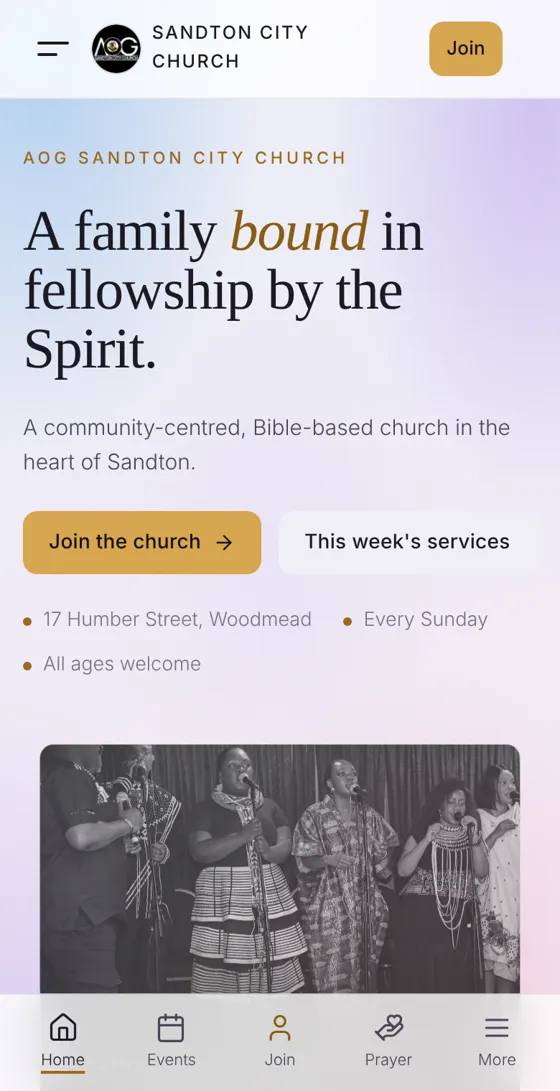
Step 1
Open the church website
- On your phone or computer, open the internet (Chrome, Safari or Samsung Internet).
- Type aogsccyouth.com at the top and press Go.
- You'll see our church's front page. You don't need to sign in to look around.
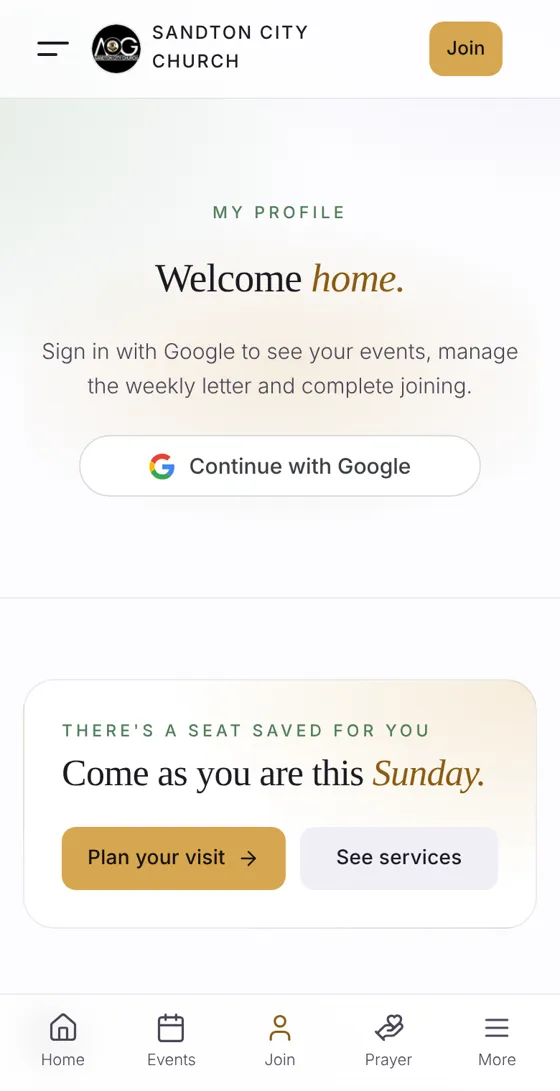
Step 2
Sign in
- Tap Join at the top right, or the little person at the bottom.
- Tap Continue with Google and choose your Gmail account. That's all: no new password to remember.
- No Gmail? Ask anyone at the welcome desk on Sunday and they'll help you.
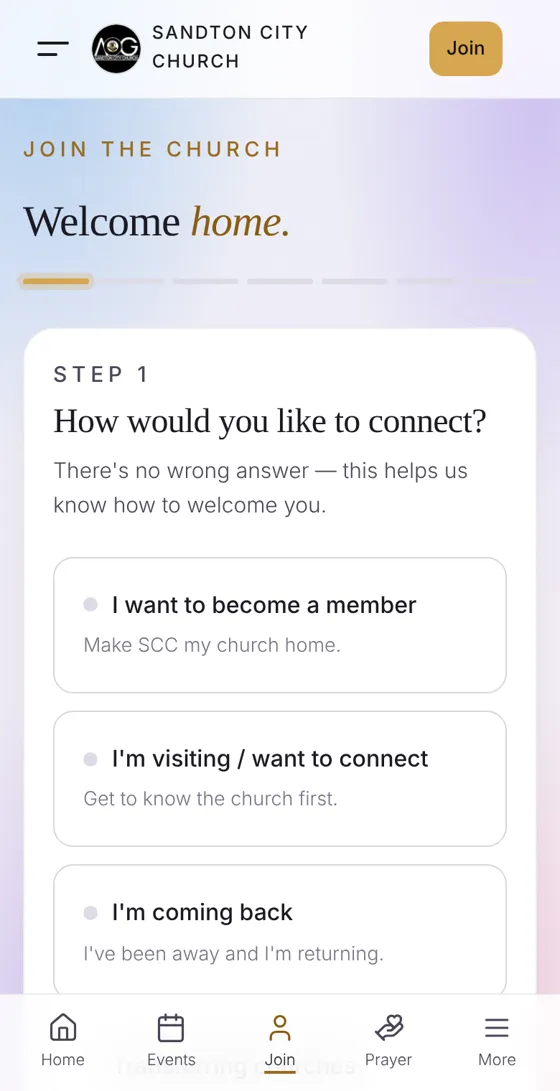
Step 3
Become a member
- The first time, we'll ask a few short questions. Most of it is already filled in for you.
- Tap the answer that fits you, then Next.
- When you finish, a leader will welcome you and confirm your membership.
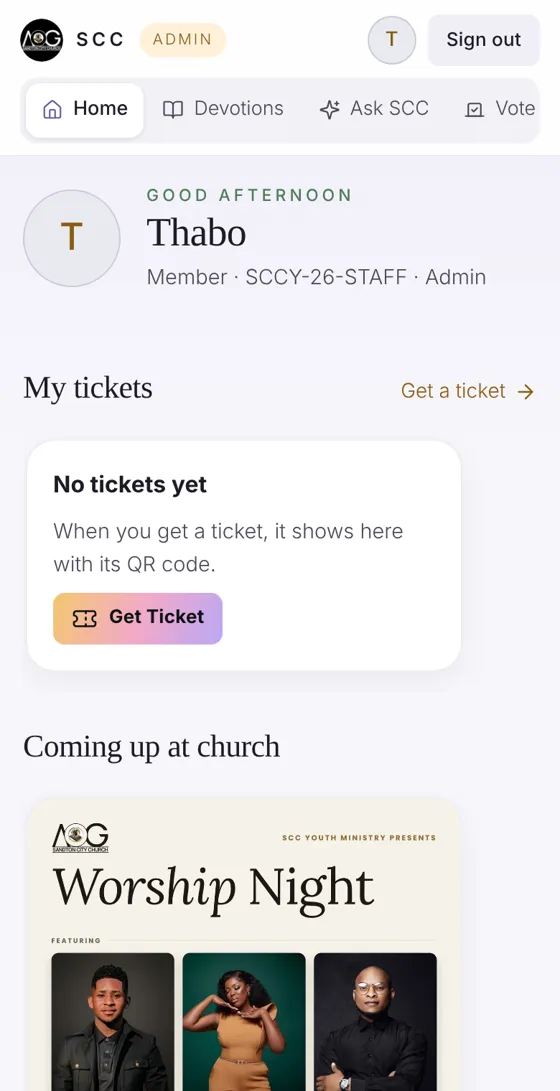
Step 4
Your Home
- After signing in you always start on Home.
- At the top are your buttons: Home, Devotions, Ask SCC, Vote, Store, Settings. Tap one to go there.
- My tickets shows your tickets. Coming up at church shows what's next. Swipe left and right to see more.
Step 5
Get a ticket for an event
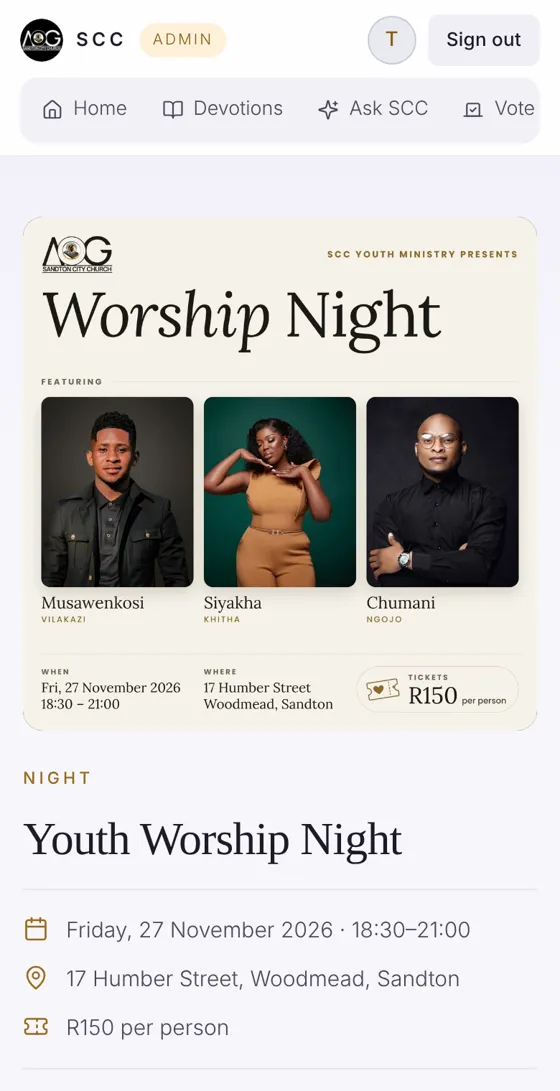
- On Home, tap an event under Coming up at church.
- Read when and where it is, then scroll down to Get your ticket.
Step 6
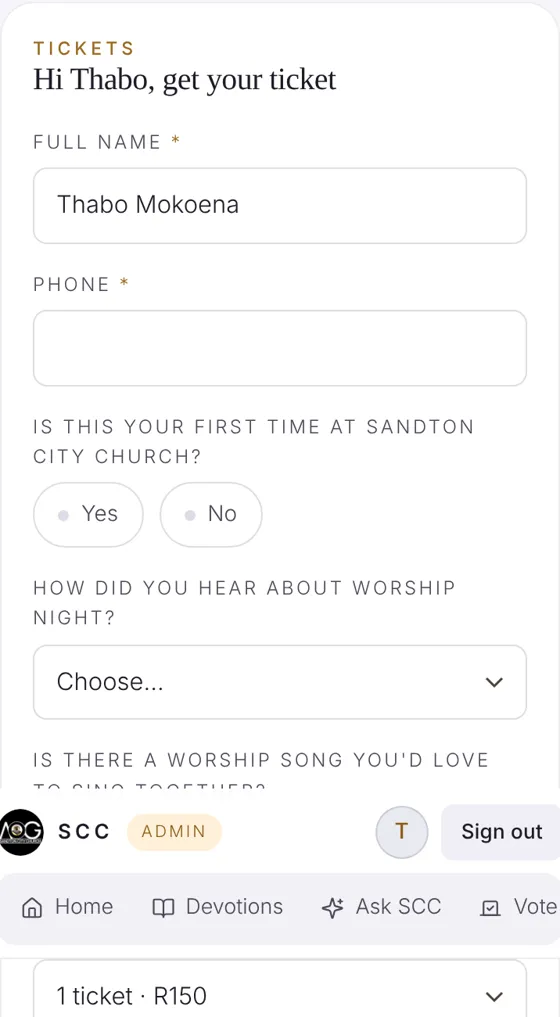
Fill in and tap Get Ticket
- Check your name and phone number, and choose how many tickets.
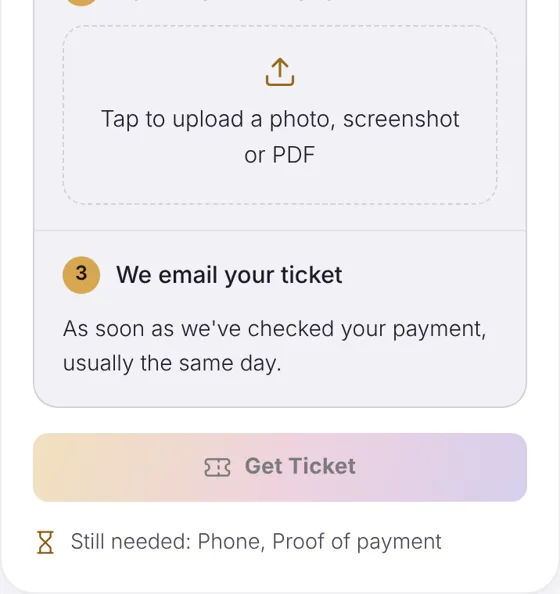
- If the event costs money, pay by EFT using the reference shown, then add a photo of your proof of payment.
- Tap the Get Ticket button. Your ticket comes to your email and appears on Home, ready to show at the door.
Step 7
Read today's verse
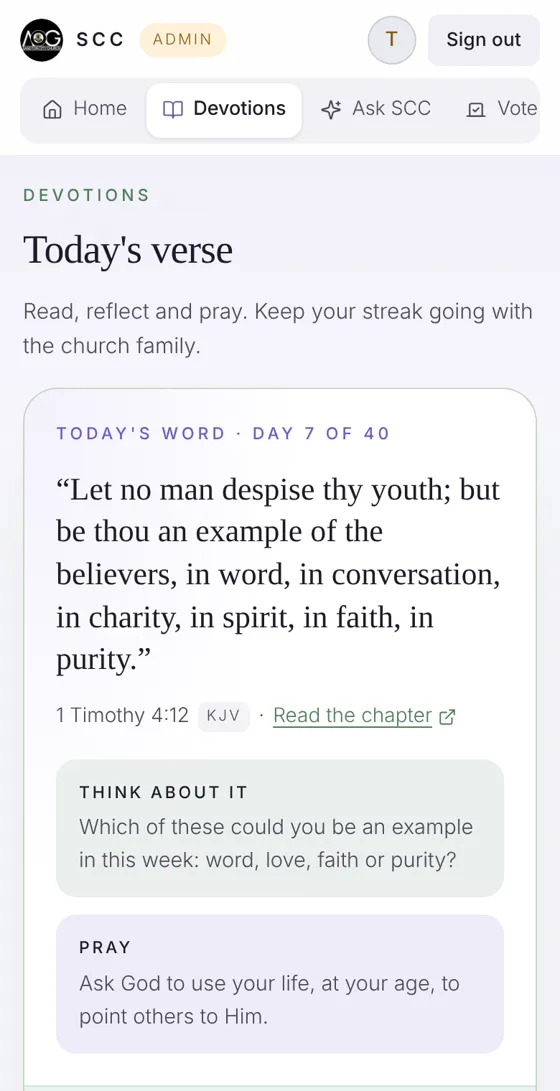
- Tap Devotions at the top.
- Read the verse, think about the question, and pray.
- Tap I've read it & prayed.
Step 8
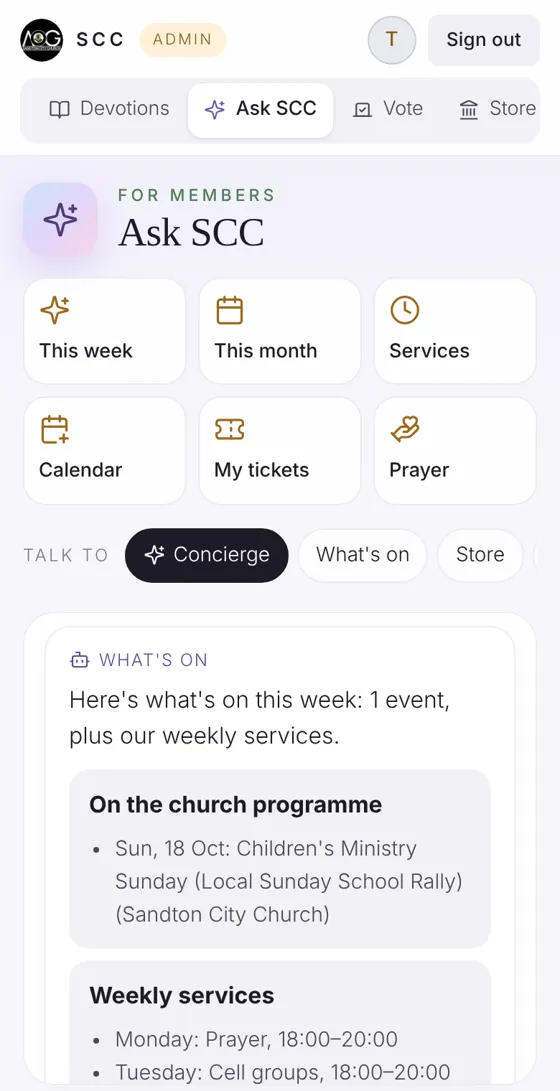
Ask SCC a question
- Tap Ask SCC at the top.
- Tap a big button like This week, or type your question in the box at the bottom, for example When is the Sunday service?
- It answers from the church's own calendar, and can add dates to your phone's calendar.
Step 9
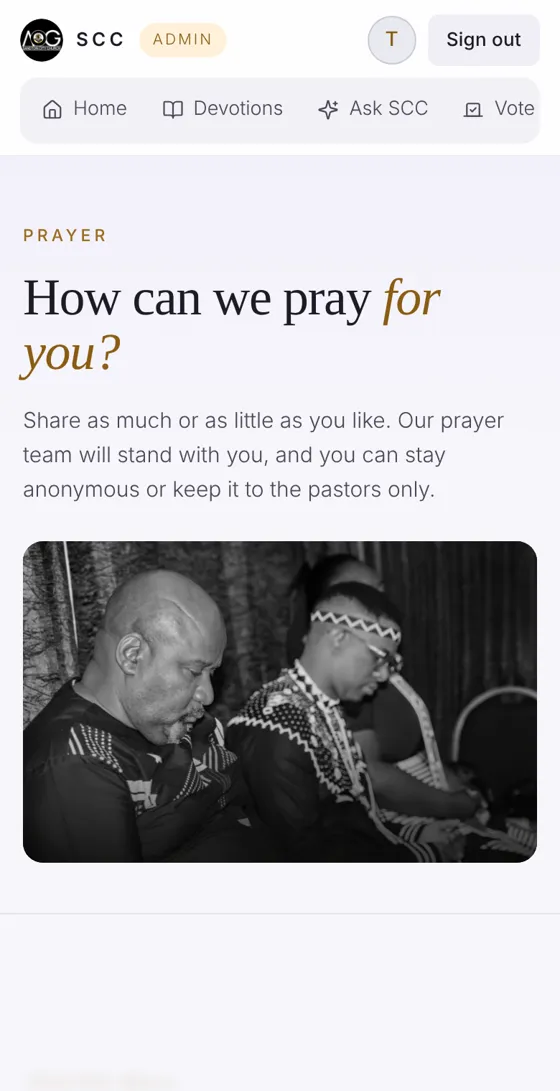
Ask for prayer
- Open Prayer (from Home, under What to know, or ask Ask SCC for prayer).
- Write your request. You choose whether only the prayer team sees it, or it goes on the prayer wall.
- Every Monday, members get the week's prayer list by email to pray together.
Step 10
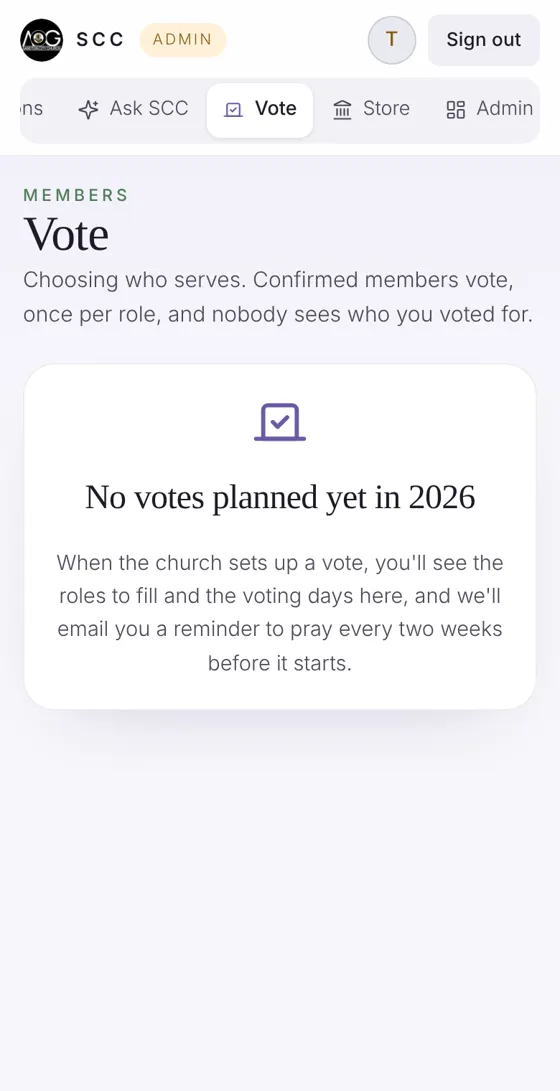
Vote
- Tap Vote at the top. Voting is for confirmed members.
- When there's a vote, you'll see the roles to fill. Tap a person, then Cast my vote. Your vote is secret.
- We email everyone before voting starts, to pray first.
Step 11
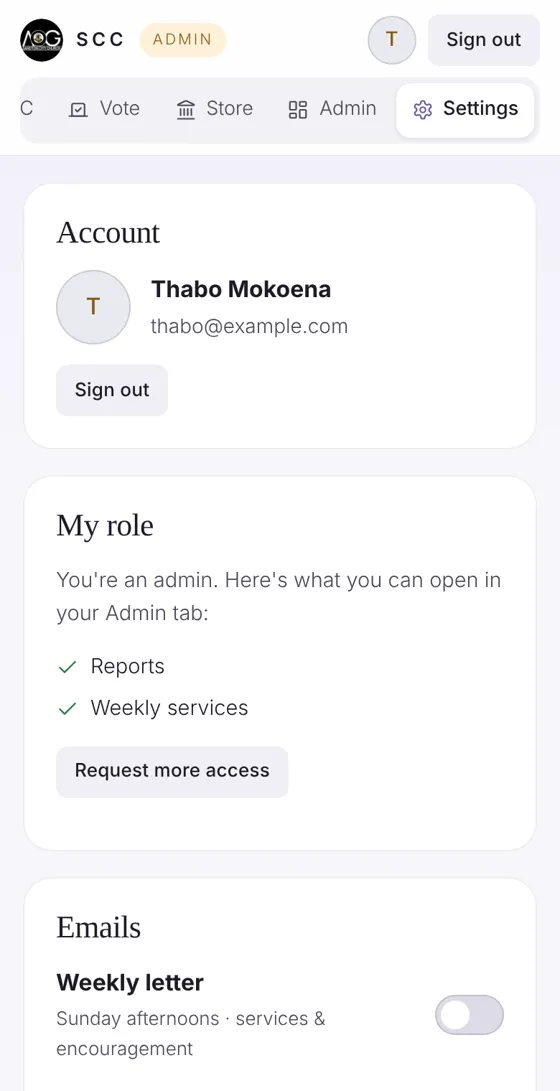
Settings and signing out
- Tap Settings at the top to choose which emails you get.
- Tap Sign out (top right) when you're done, especially on a shared phone.
- Signing out takes you back to the church website.
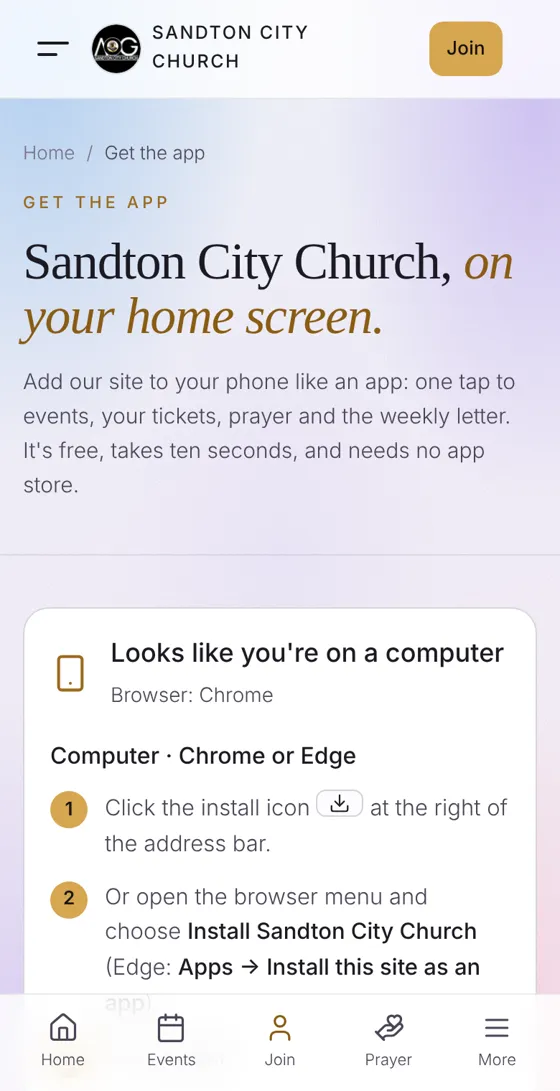
Step 12
Put the app on your phone
- On the website, open the menu and tap Get the app.
- Follow the two or three steps for your phone. The church icon appears on your home screen, like any other app.
- Tap the icon any time to open it. No app store needed.
Still stuck?
That's okay. Speak to someone at the welcome desk on Sunday, or call or WhatsApp the church office. We're happy to sit with you and set it up together.